
Team holiday & absence tracker

See who's off at a glance.

One shared calendar for your team's holidays, sick days and home-working. AwayDay keeps everyone's allowance on track and warns you before too many people are off at once.

Free on your device Cloud sync by invite Works on your phone
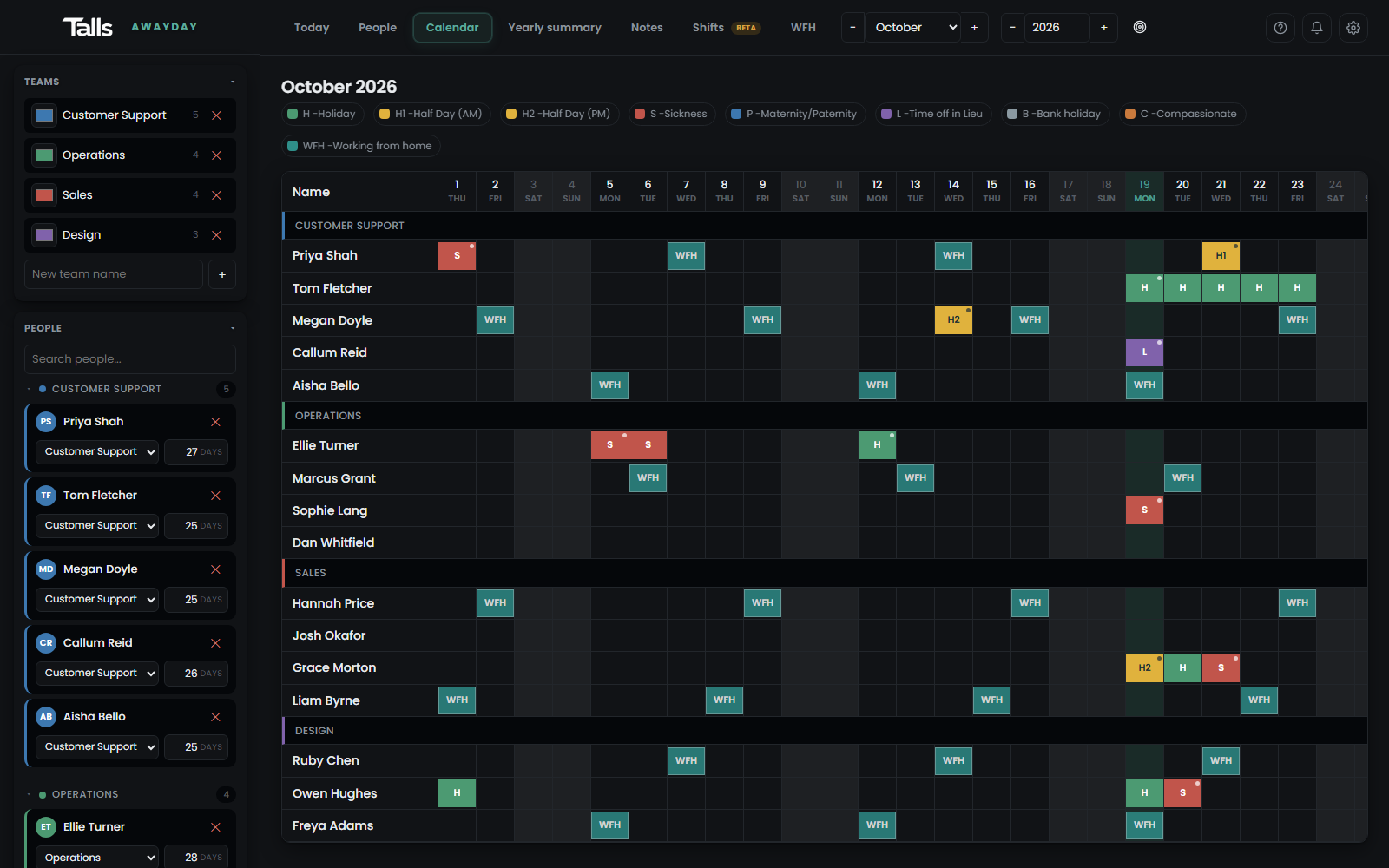
The AwayDay calendar, showing a month of the team's holidays and absences screens/calendar.png · the main calendar on a busy month

What it does

Everything about who's in and who's off, in one place.

  • Team calendar

    Every person, every day. Click a day next to someone's name and pick holiday, sick, or whatever else you track.

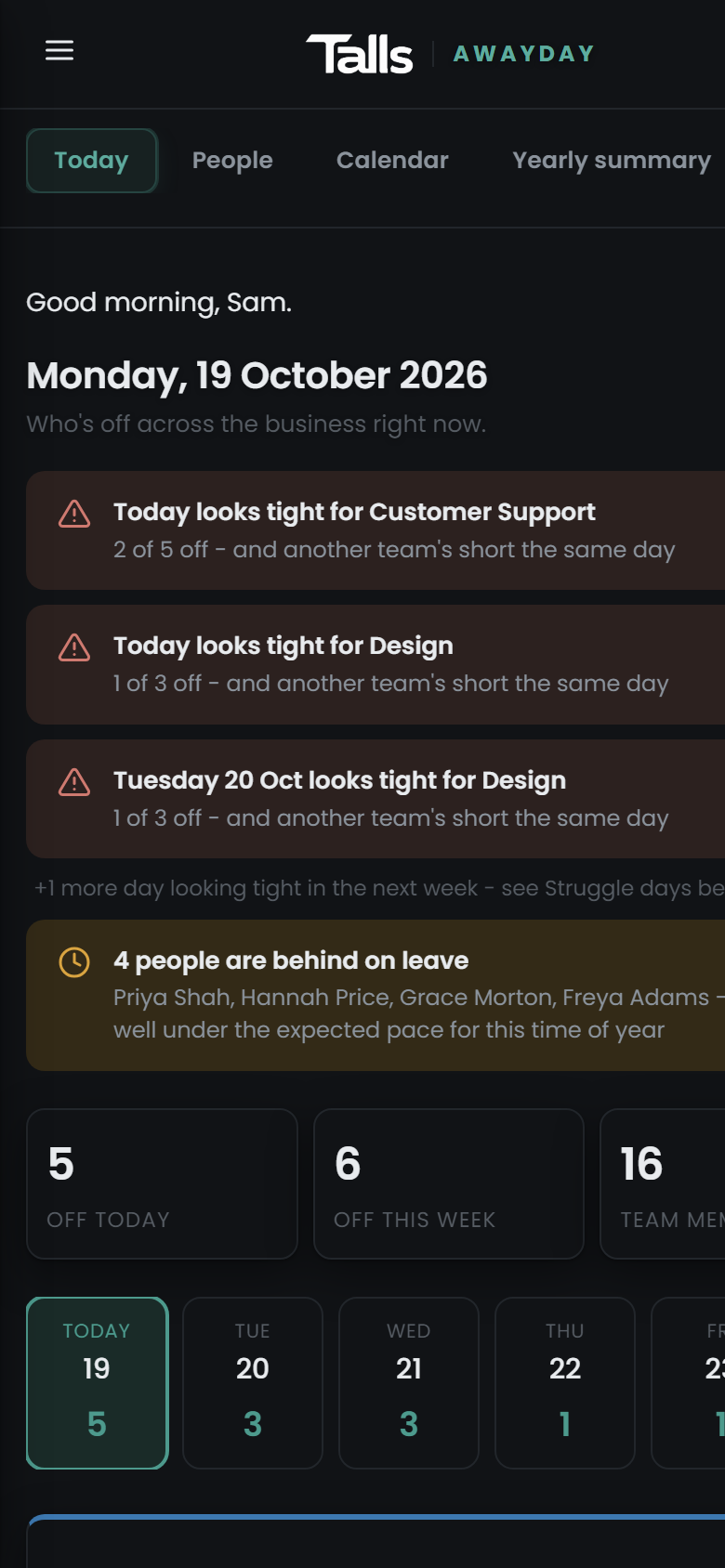
  • Today

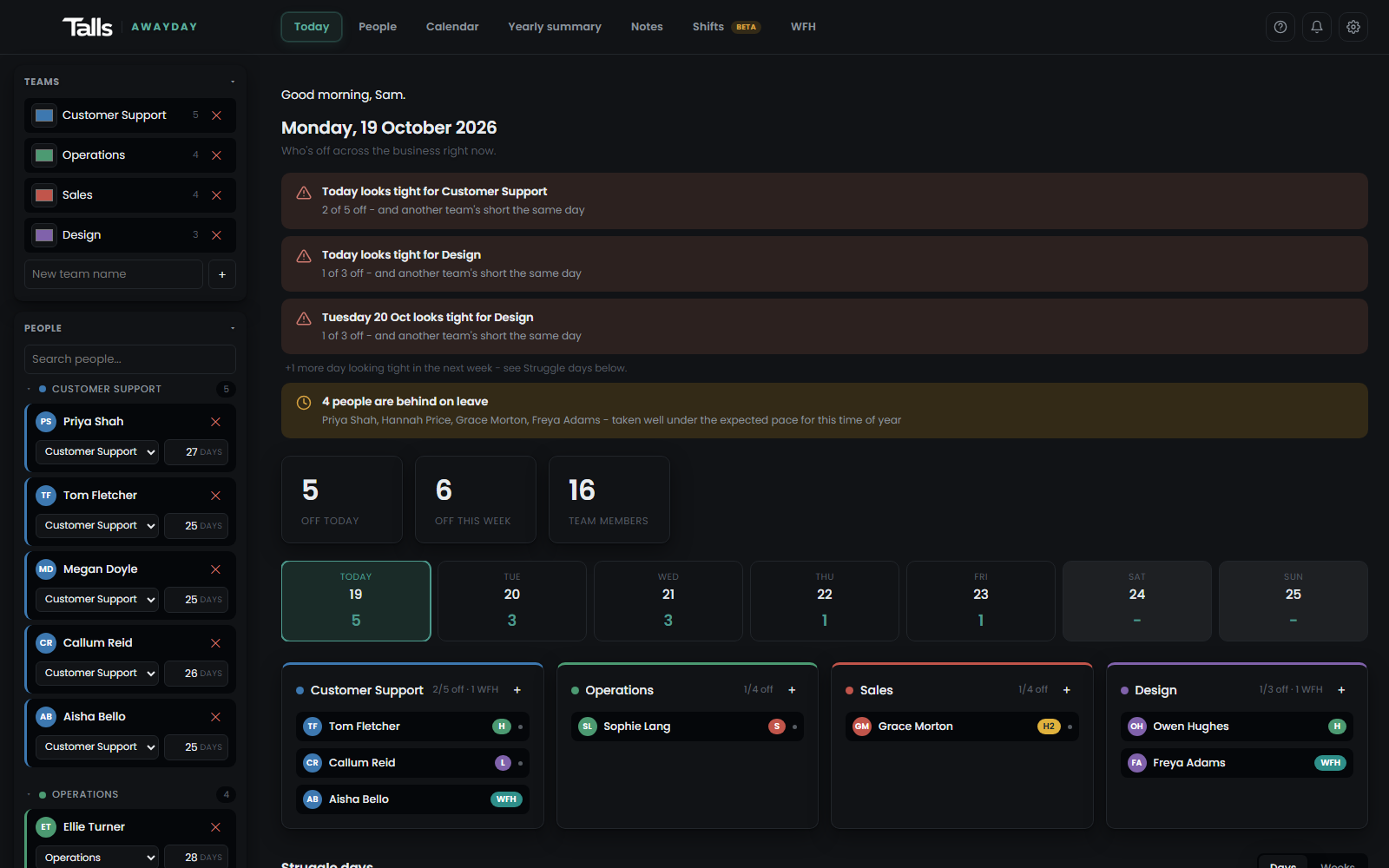
    Open it in the morning and see who's off right now, and who's off next.

  • Struggle days

    Spots the days and weeks where too many people are off at once, before they become a problem.

  • Allowances

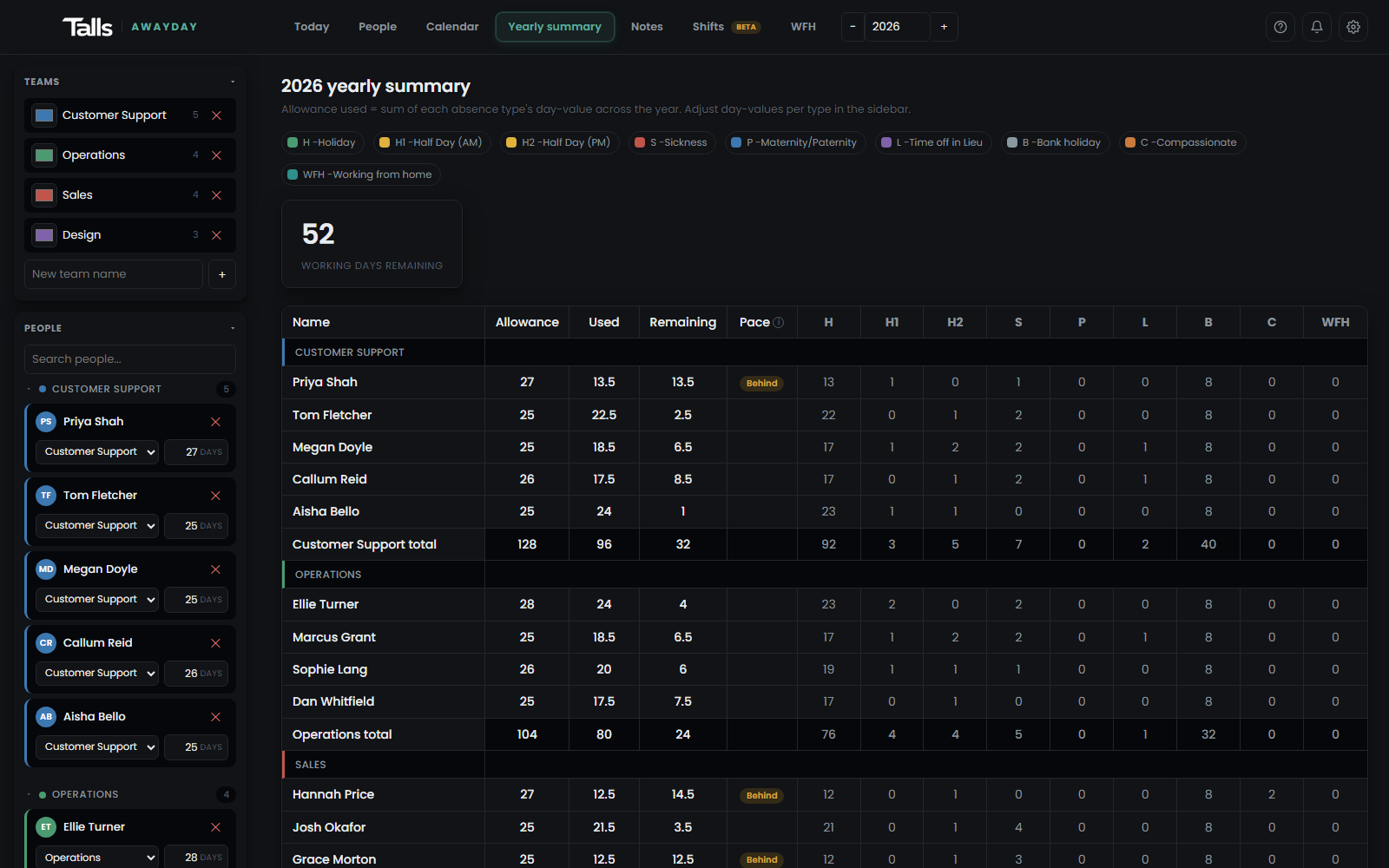
    Days used and days left for each person and each team, with a yearly summary.

  • Your own absence types

    Holiday, sick, training, half days. Set what each one counts as, so the totals add up properly.

  • Working from home rota

    Set someone's regular home day once and it fills in every week. Holidays still take priority.

  • Shifts

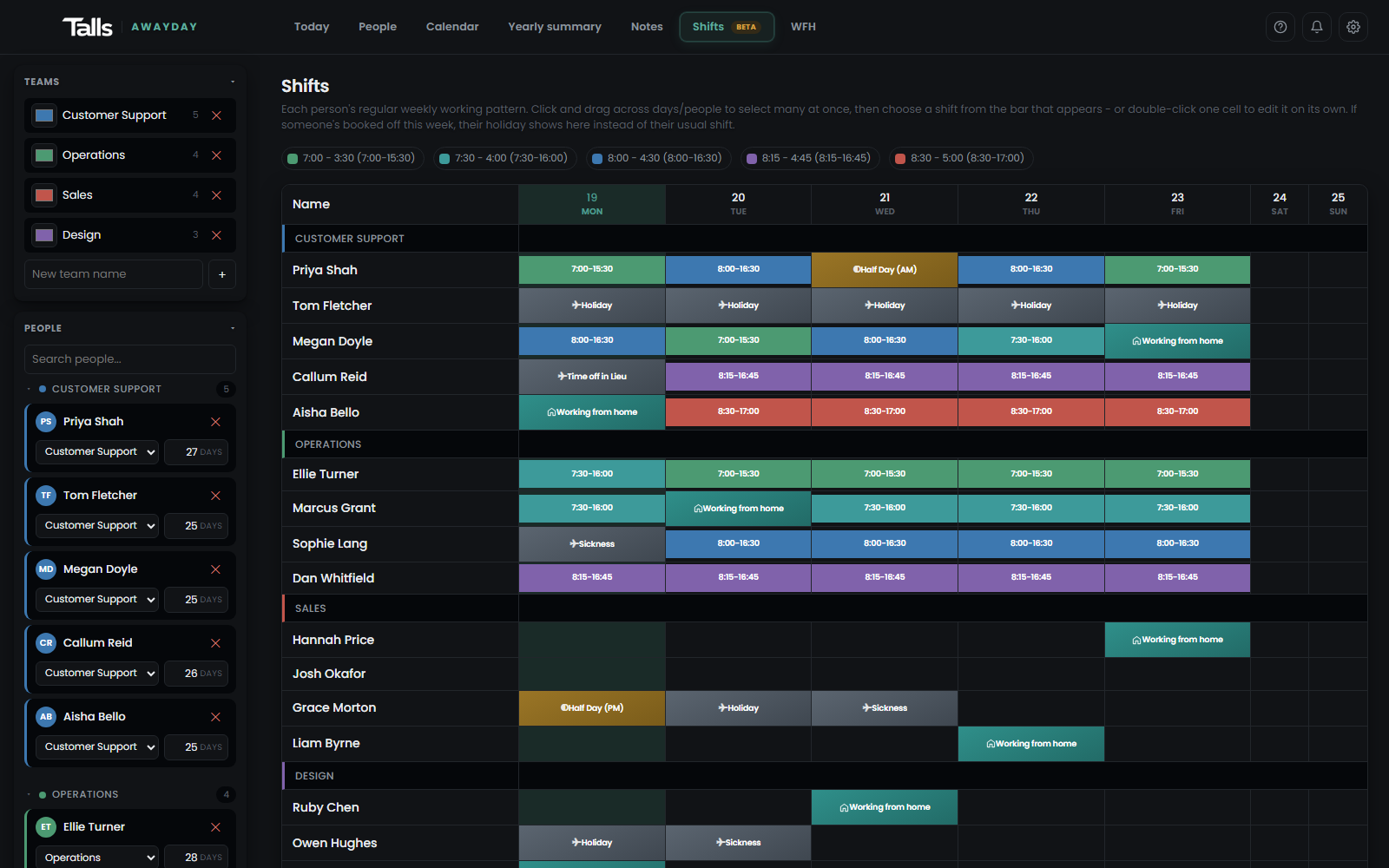
    Plan shift groups alongside absences, so cover is clear on the same screen.

  • Bank holidays

    Added for you, for England & Wales or Scotland.

  • Live for everyone

    When someone books a day off, the rest of the team sees it straight away, on any device.

  • Teams & roles

    Invite colleagues by email. Admins manage the calendar, members see it.

Screenshots

Have a look around.

Why AwayDay

Built because the spreadsheet stopped working.

Our team's holidays lived in a shared spreadsheet. Someone would book a week off, someone else would book the same week, and nobody noticed until half the team was out.

The tools that fix this are mostly built for big HR departments: long setup, per-seat contracts, and far more than a small team needs. I wanted something you could open in the morning and know, in a couple of seconds, who's in.

So I built AwayDay. It started as a tool for Talls, and now it's here for anyone in the same spot.

Talls

Getting started

Up and running in a few minutes.

  1. Open AwayDay

    Start straight away. It saves to your browser, with no account needed.

  2. Add your people

    Add teams and people, and set everyone's allowance.

  3. Share it with the team

    Cloud sync is invite only. Ask us and we'll set up your workspace, then invite your team by email.

Your data

Kept private to your team.

  • Two-factor sign-in

    Every account uses an authenticator app code as well as a password. No exceptions.

  • Separate workspaces

    Each workspace is walled off in the database. Nobody outside your team can see your calendar.

  • Invites stay in-house

    Invites only go to email addresses on your own company domain.

  • No ads, no selling data

    The privacy policy sets out exactly what's stored.

Pricing

Free on your device. Cloud by invite.

Anyone can use AwayDay on their own device for free, with no account. Syncing and sharing live with your team is invite only for now.

Invite only

Cloud

By invitation

For a team sharing one calendar, live.

  • Synced across everyone's devices
  • Team sign-in with two-factor
  • Set up for you
Ask for access

Already invited? Sign in here.

Support

Ask for access, or get a hand.

Already using AwayDay?

Stuck, spotted a bug, or locked out of your authenticator? Email us and we'll get back to you, usually within one working day.

Can I try it before asking for access?

Yes. The demo is the full app filled with a made-up team. Click around as much as you like: nothing is saved and it resets when you reload.

Do I need an account?

No. Without an account AwayDay saves everything to the browser on your device. Use “Save team file” to keep a backup or move it to another computer. An account is only for cloud sync, which is invite only.

How much does it cost?

Using AwayDay on your own device is free. Cloud sync for teams is invite only for now: ask for access and we'll talk you through it.

Who can see our calendar?

On your own device, nobody: it stays in your browser. In the cloud, only people in your workspace. Workspaces are separated in the database, every account signs in with two-factor, and invites only go to your own company's email domain.

Does it work on phones?

Yes. It runs in the browser on phones, tablets and computers, with nothing to install.

I forgot my password.

Use "Forgot password" on the sign-in page. If you've also lost your authenticator app, email us and we'll help you back in.